A better ls on macOS: use eza, but not as an alias
I spend most of my day in a terminal, and I don't need ls to tell me who owns a file.
Here is the front end of one of my projects, as macOS ls -l sees it:
total 640
-rw-r--r--@  1 adrian  staff    6739 Apr 15 09:12 AGENTS.md
drwxr-xr-x@ 14 adrian  staff     448 Apr 16 08:41 app
drwxr-xr-x@ 15 adrian  staff     480 Apr 16 08:41 components
-rw-r--r--@  1 adrian  staff     382 Apr 15 09:12 eslint.config.mjs
drwxr-xr-x@  5 adrian  staff     160 Apr 16 08:41 lib
-rw-r--r--@  1 adrian  staff     251 Apr 15 09:12 next-env.d.ts
-rw-r--r--@  1 adrian  staff     129 Apr 14 22:07 next.config.ts
drwxr-xr-x@ 16 adrian  staff     512 Apr 15 09:12 node_modules
-rw-r--r--@  1 adrian  staff     660 Apr 15 09:12 package.json
-rw-r--r--@  1 adrian  staff  132858 Apr 16 16:14 pnpm-lock.yaml
-rw-r--r--@  1 adrian  staff     146 Apr 14 22:07 postcss.config.mjs
drwxr-xr-x@  3 adrian  staff      96 Apr 14 22:07 public
-rw-r--r--@  1 adrian  staff     275 Apr 16 23:16 README.md
drwxr-xr-x@  4 adrian  staff     128 Apr 15 09:12 src
-rw-r--r--@  1 adrian  staff     698 Apr 14 22:07 tsconfig.json
-rw-r--r--@  1 adrian  staff  155028 Apr 16 08:41 tsconfig.tsbuildinfo
Useful information, certainly. Four columns of it before you reach a single filename. But most of the time I am not looking at a Unix filesystem because I need to audit permissions. I am looking for a file.
I would rather see this:
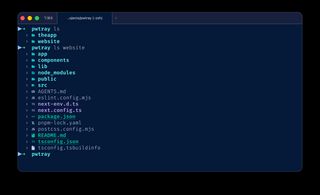
Same directory, same information I actually wanted, and I can find package.json in it without
reading a single permission bit.
That is what this setup does. We replace ls in the interactive shell with
eza, give it icons and colours, and - the part most
write-ups get wrong - make sure it still behaves when you pass it arguments.
Why eza
There are plenty of ways to customise a terminal. I am not interested in turning mine into a
dashboard. eza is the maintained fork of the old exa, and the useful parts of it are simple:
- sensible file listings
- directories grouped first
- optional icons
- file-type colours
- tree views
- useful sorting options
- Git integration
- familiar
ls-style arguments
The important bit is the last one. It still feels like ls.
1. Install a Nerd Font
If you want icons, your terminal needs a font that carries the Nerd Font glyphs. Check what you already have:
system_profiler SPFontsDataType | grep -i "nerd"If nothing comes back, Fira Code is a reasonable choice:
brew install --cask font-fira-code-nerd-fontMake sure your terminal is actually using it
This is the part that is easy to miss. Your editor font and your terminal font are two different settings. In VS Code:
{
  "editor.fontFamily": "Fira Code",
  "terminal.integrated.fontFamily": "FiraCode Nerd Font",
  "terminal.integrated.lineHeight": 1.2
}
You do not need to restart VS Code - run Developer: Reload Window from the Command Palette.
In iTerm2 the setting lives under Settings → Profiles → Text → Font; pick FiraCode Nerd Font there.
2. Install eza
which eza || brew install ezaCheck that it runs:
eza -1 --group-directories-firstAt that point you already have a better ls. The -1 matters: it puts each entry on its own line
instead of eza's default grid.
3. Add a theme
Added October 2024: eza 0.20 reads a theme file, which earlier versions did not. If you are on an older build, skip this section - everything else still works.
Create the config directory:
mkdir -p ~/.config/ezaI use Tokyo Night:
curl -L https://raw.githubusercontent.com/eza-community/eza-themes/refs/heads/main/themes/tokyonight.yml \
  -o ~/.config/eza/theme.yml
Then tell eza where to look, in ~/.zshrc:
export EZA_CONFIG_DIR="$HOME/.config/eza"Reload and confirm:
source ~/.zshrc
echo $EZA_CONFIG_DIR
4. Don't alias this one
Here is the bit worth the post. You will be tempted to write:
alias ls='eza -1 --icons=always --color=always --group-directories-first | sed "s/^/ › /"'Don't. It looks fine until you do the thing in the screenshot above:
ls websiteA shell alias is a textual substitution, so your command becomes:
eza -1 --icons=always --color=always --group-directories-first | sed "s/^/ › /" websitewebsite now belongs to sed, not to eza. Once sed has a file operand it stops reading stdin,
so eza's listing is thrown away and you get whatever sed makes of website instead - nothing at all
for a directory, or the entire contents of the file if you happened to name one:
 › {
 ›   "name": "@pwtray/website",
 ›   "version": "1.0.1",
ls -la is worse only in that it tells you:
sed: -la: No such file or directorySame story for every argument you type after the command name.
Use a shell function instead:
unalias ls 2>/dev/null
function ls { eza -1 --icons=always --color=always --group-directories-first "$@" | sed 's/^/ › /'; }
The whole fix is "$@". It puts your arguments where they belong - on eza, before the pipe. So
ls, ls website, ls -a, and ls website/app -T -L 2 all do what you expect.
5. Put it at the end of .zshrc
This matters if you use Oh My Zsh or another framework: define the function after the framework
loads, or the framework's own ls alias wins.
# plugins, framework, PATH, etc.

export EZA_CONFIG_DIR="$HOME/.config/eza"

unalias ls 2>/dev/null
function ls { eza -1 --icons=always --color=always --group-directories-first "$@" | sed 's/^/ › /'; }
Why the unalias? If ls is already an alias (oh-my-zsh defines one, for example),
zsh substitutes the alias text into your function definition line before running it.
The result is garbage syntax, and you get:
parse error near `()'Removing the alias with unalias ls 2>/dev/null first means the next function line defines a clean function named ls. The function keyword adds a safety net: unlike the ls() { ... } syntax, the name after function is never alias-expanded.
source ~/.zshrc6. Try it
lsHere, the ls gives you the listing from the top of the post - with icons in front of each name, if your terminal
font has them. ls website gives you the same treatment one directory down, which is the whole
reason for the function.
The rest of eza is still there too:
ls -a           # hidden files
ls -T -L 2      # a two-level tree
ls -s modified  # sorted by modification time
ls -D           # directories only
ls | grep .md   # and it still pipes
Flags and paths in the same command work the way they always did:
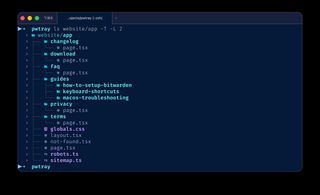
ls website/app -T -L 2 - a path and two eza flags, passed straight through by "$@".Keeping the real ls
There are still times I want the traditional output, and it never went anywhere:
command ls -la
\ls -la
The function only exists in your interactive shell. It does not touch /bin/ls, and scripts running
outside that shell never see it. That is exactly how this kind of customisation should work:
convenient at the prompt, invisible everywhere else.
One detail: --color=always
Command-line tools are normally careful about colour. If stdout is a terminal they emit colour codes; if stdout is a pipe they usually turn colour off, so the escape sequences don't end up inside whatever is reading them.
Our function deliberately pipes eza through sed:
eza → sed → terminalSo eza does not see a terminal. It sees a pipe, and it would drop both the colours and the icons.
That is why --color=always and --icons=always are in there: they force the decoration back on.
The trade-off is that the escape codes are now real characters in the output. Anything that understands ANSI is fine:
ls | less -RAnything that doesn't will show you the codes, so use command ls when you are feeding the output
to something that parses it.
The final setup
export EZA_CONFIG_DIR="$HOME/.config/eza"

unalias ls 2>/dev/null
function ls { eza -1 --icons=always --color=always --group-directories-first "$@" | sed 's/^/ › /'; }
That is the lot. No replaced system binaries, no changes to macOS, no wrapper script sitting in
/usr/local/bin. Just a small function that makes the command I run a few hundred times a day show
me what I actually came to see.
You might be interested in:
- Git commands I wish I knew early - the other half of the same terminal.
- The Pragmatic Programmer - where the case for small, local, invisible shell automation comes from.